Product
Everything between the schedule and the pay stub
Smart Punch covers scheduling, time tracking, payroll and year-end for hourly teams in British Columbia, and you can run much of it by simply asking. Here’s what each part does.
Ask Smart Punch
Just type what you need
Ask Smart Punch turns a plain sentence into the right request, for your staff and for you. It fills in the details, checks them against BC rules and your schedule, and waits for a tap on Confirm before anything is saved.
- For staff: “I need next Friday off”, “I’m sick today”, “When do I work next week?” or “Tell my manager I can work Sundays now”.
- For managers: “Approve Emily’s leave”, “Put Jack on unpaid leave Nov 1 to 15”, “Publish next week” or “Who can cover Saturday afternoon without overtime?”.
- Dates and days are written out in full on the card, so a wrong guess is easy to spot before you confirm.
- It checks first: BC’s paid sick day limit, overlapping requests, and shifts the person is still scheduled for.
- Both sides are notified: the manager when a request comes in, the employee when it’s approved or denied.
- It never runs payroll or moves money, and through it, staff only reach their own shifts, time off and pay.
The assistant is optional. When you use it, what you type and the details it needs are sent to our AI provider to write the answer. See the Privacy Policy.
Scheduling
Build next week in minutes, see the cost before you publish
Shifts stay drafts until you publish, so you can plan the whole week before anyone sees it.
- Copy last week, then adjust.
- Open shifts for busy nights, and Auto-assign to fill them with someone available who won’t go into overtime.
- Projected labour cost and overtime as you build, including vacation pay and employer CPP and EI.
- Warnings for BC rules and clashes: split shifts over 12 hours, less than 8 hours between shifts, overlaps, time off and availability.
Time clock
Clock-ins you can trust
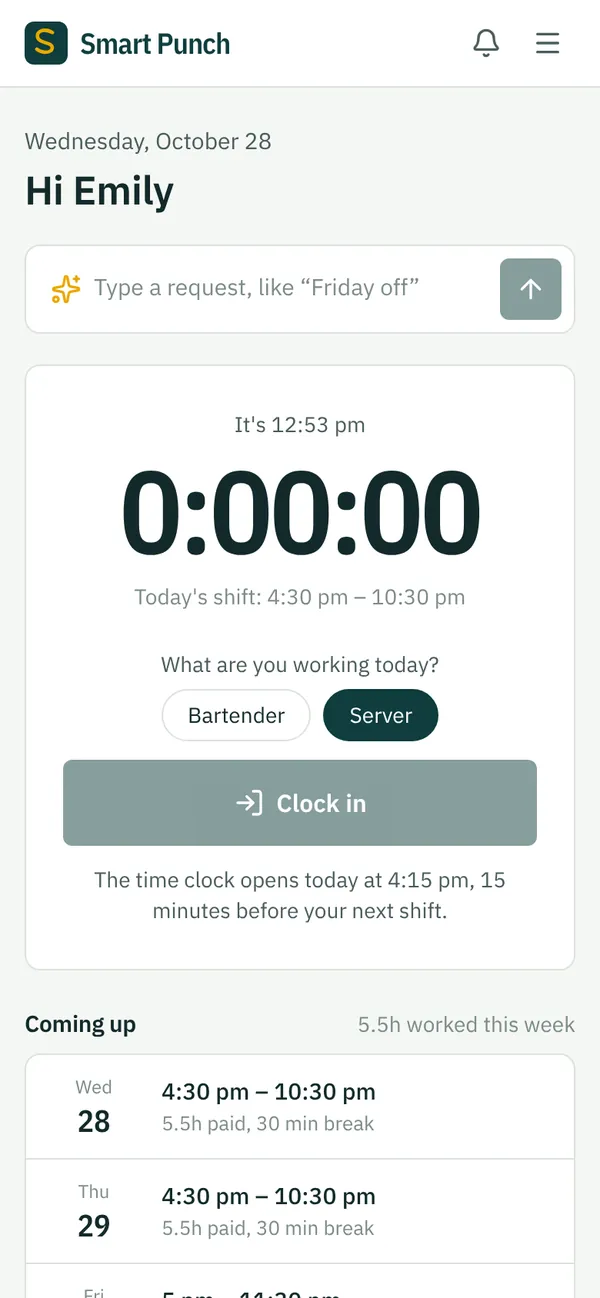
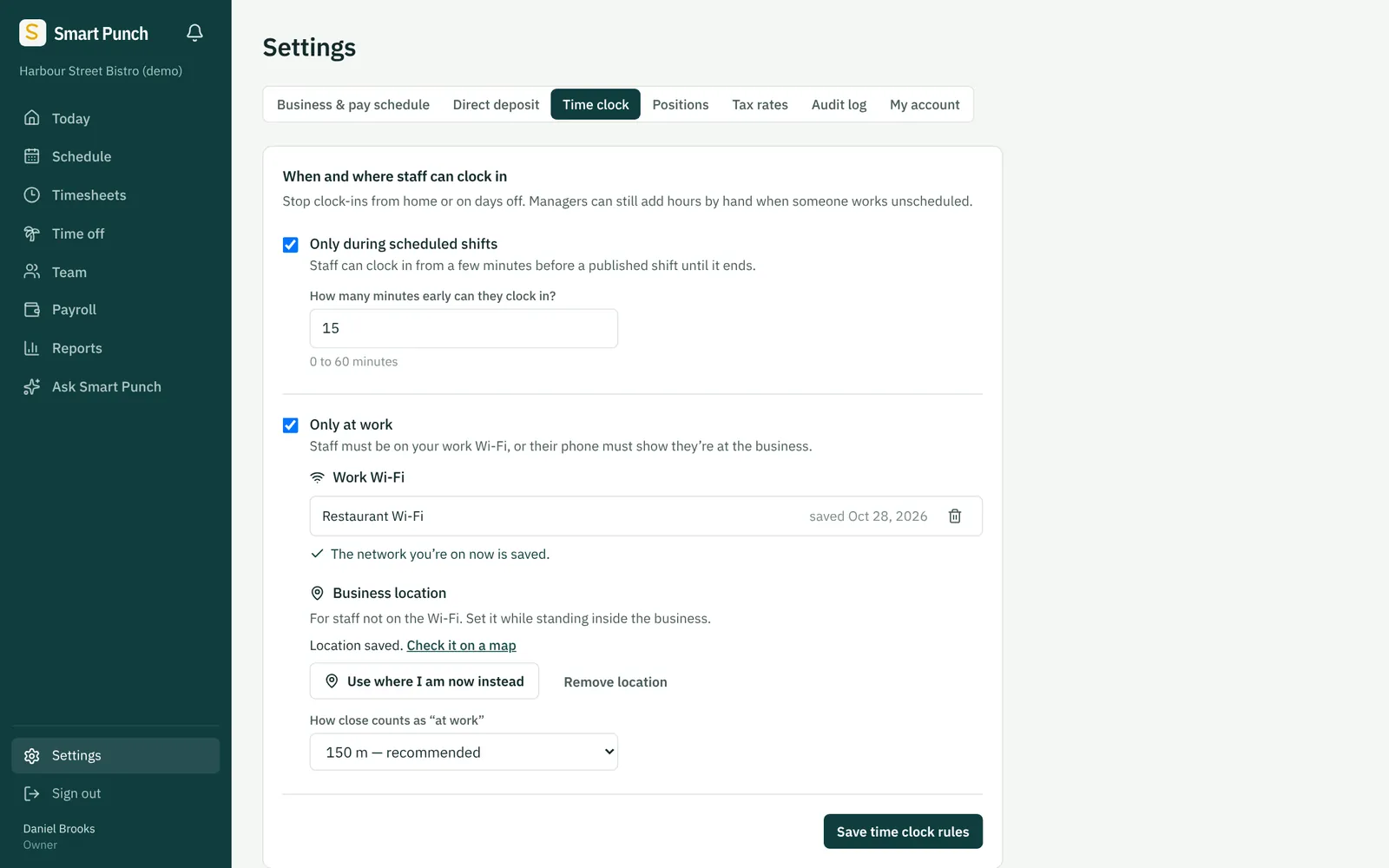
Staff clock in, take breaks and clock out on their own phones. You decide when and where that’s allowed.
- Only during scheduled shifts. The clock opens a few minutes before a shift (you choose how many) and closes when it ends.
- Only at work. Staff must be on your workplace Wi-Fi, or their phone must show they’re within the distance you set.
- Staff pick the role they’re working, so each hour is paid at the right rate.
- Timesheets show how each clock-in was checked. We keep the result, never where someone actually was.
- A reminder after 5 hours that BC requires a 30-minute meal break.
Timesheets and time off
Approve the week in one look
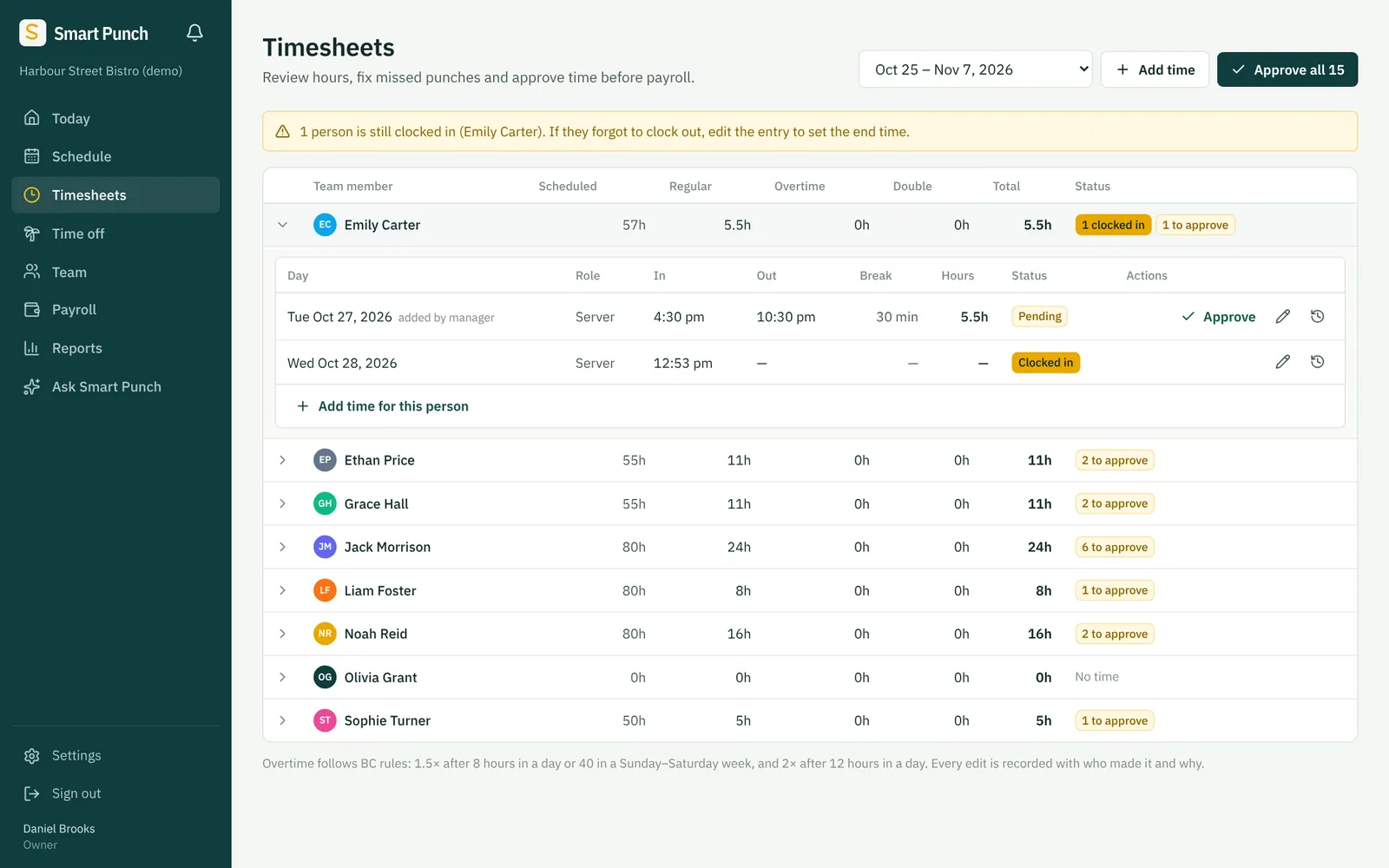
- Worked against scheduled hours for every person, with BC overtime and double time already split out.
- Fix a missed punch. Every change needs a reason and is kept in the history, with who made it.
- Managers can’t approve or change their own hours. The owner does that.
- Time-off requests from staff phones, with BC paid sick days and vacation balances counted for you.
Payroll
BC payroll, done the way CRA and the Employment Standards Act expect
- CPP, CPP2, EI, federal and BC income tax from each person’s TD1 forms.
- Daily and weekly overtime, double time, stat holiday pay using BC’s average day’s pay, and vacation pay on each cheque or banked.
- BC’s minimum daily pay: 2 hours, or 4 when someone was scheduled for more than 8.
- Different rates for different roles, plus bonuses, reimbursements and other adjustments.
- Optional tips or commission through payroll: share a pool by hours worked, or enter each person’s amount. Leave it off if your business doesn’t use it.
- Checks before you finalize, such as someone who didn’t get 32 hours in a row off in a week. Then everything locks. Made a mistake? The owner can void and run it again.
Direct deposit
Pay lands in their accounts on payday
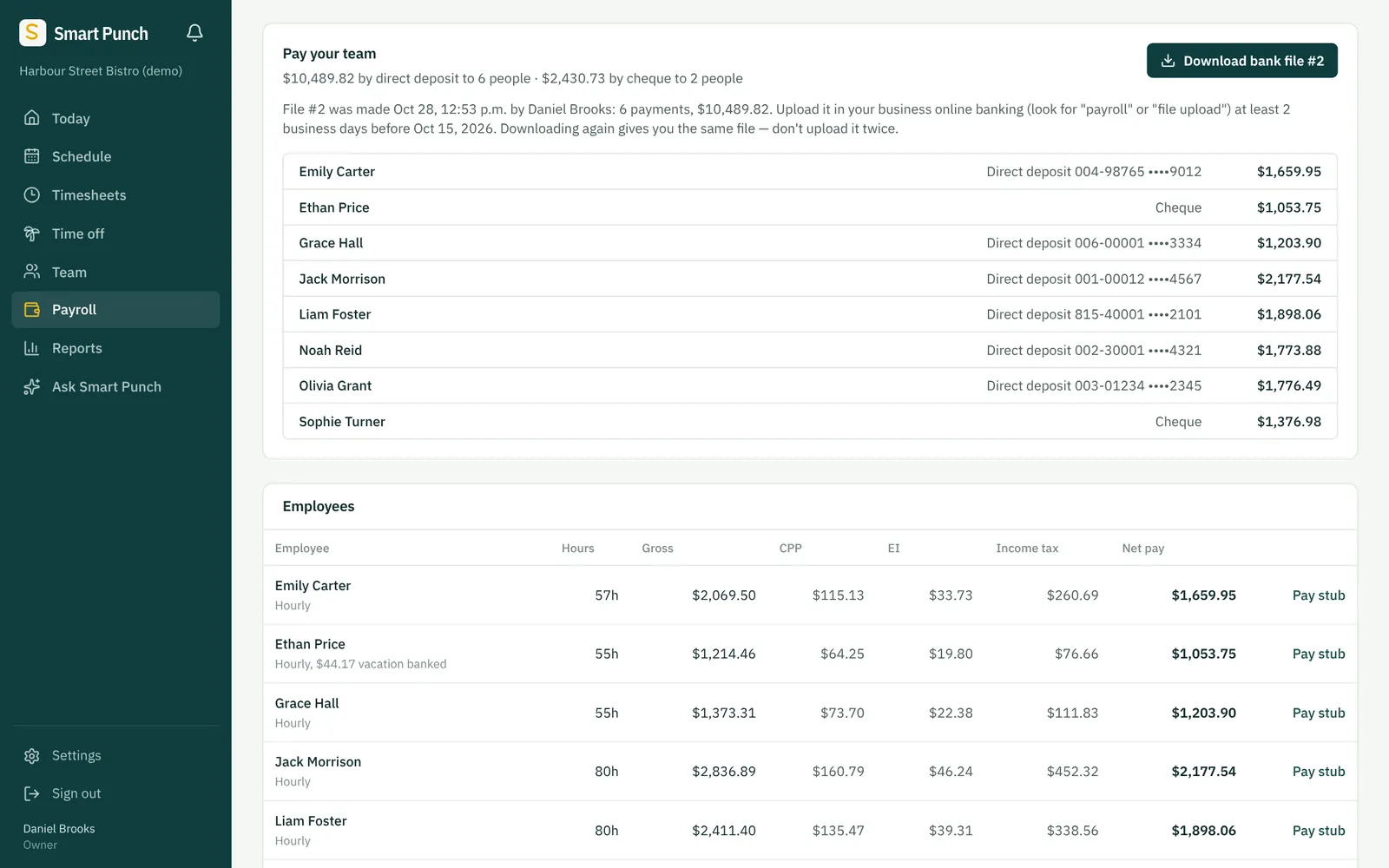
After you finalize, Smart Punch makes a direct deposit file in the Canadian banking standard (CPA 005). You upload it in your business online banking, and the money goes straight from your account to your team’s.
- Shows who’s paid by direct deposit and who needs a cheque.
- Downloading again gives you the exact same file, so nobody gets paid twice by accident.
- Bank details are encrypted. Changing them needs the owner’s password.
Monthly and year-end
Remittances, T4s and ROEs without the paperwork
- Monthly: what to send CRA on your PD7A, and when it’s due.
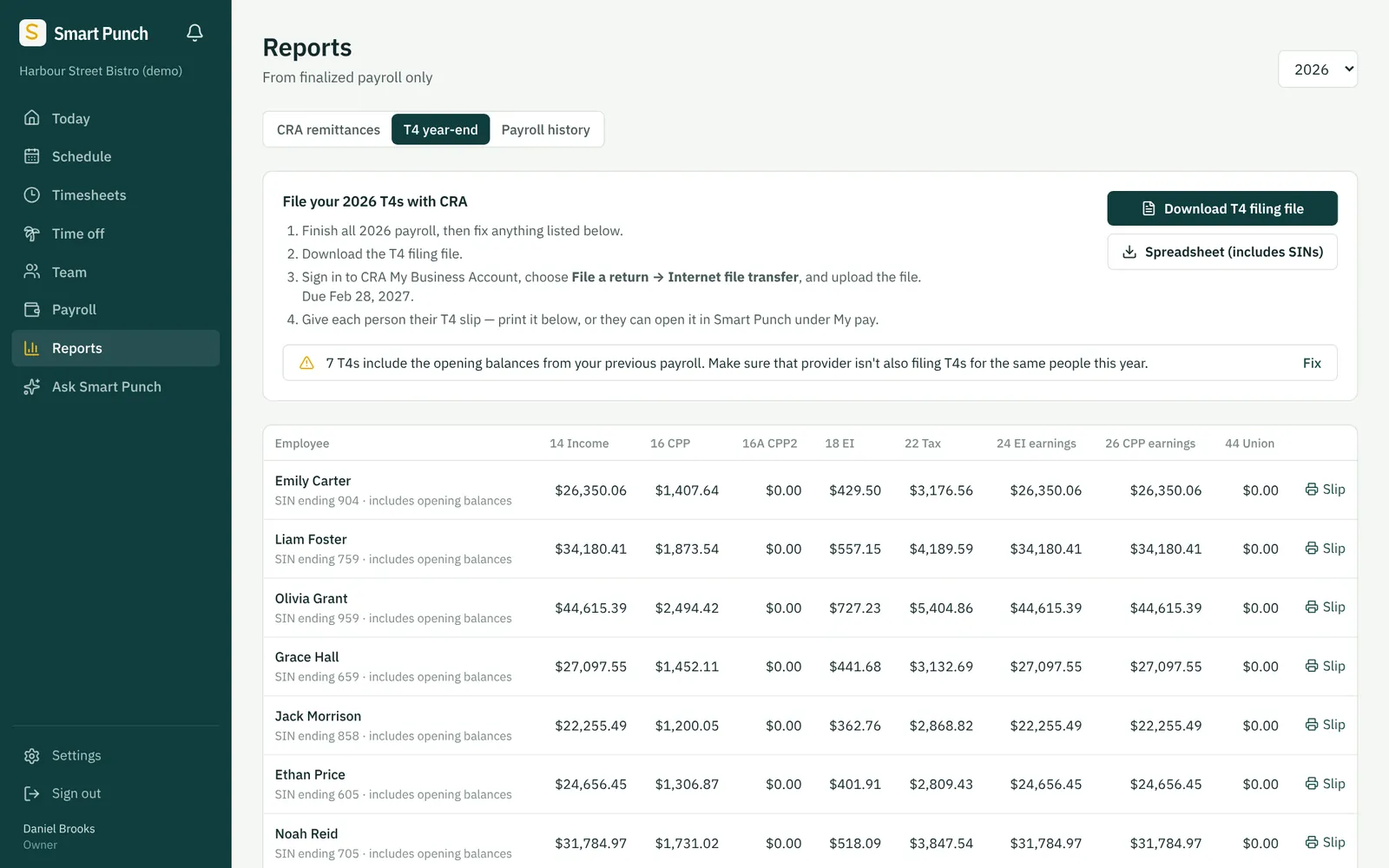
- T4s: the T4 filing file to upload to CRA, printable slips, and a slip for each person in their app.
- ROEs: hours and earnings filled in from payroll, ready to upload to Service Canada’s ROE Web.
- Switching mid-year? Enter year-to-date figures from your old payroll so deductions stop at the yearly maximums.
Staff app
What your team sees on their phones
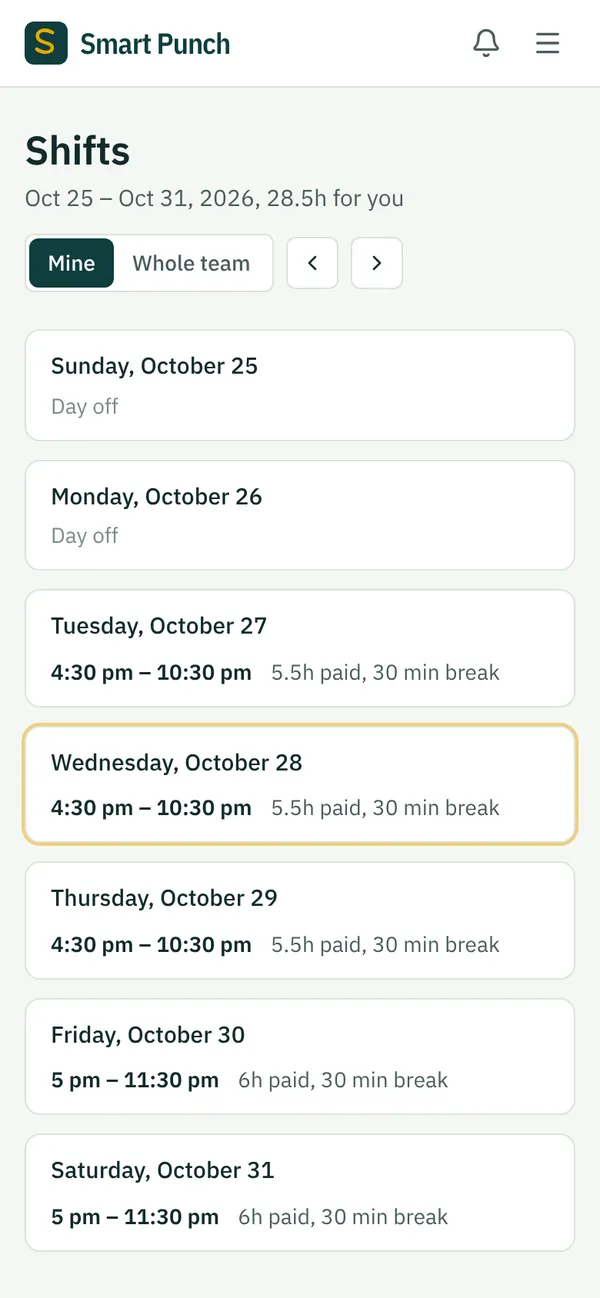
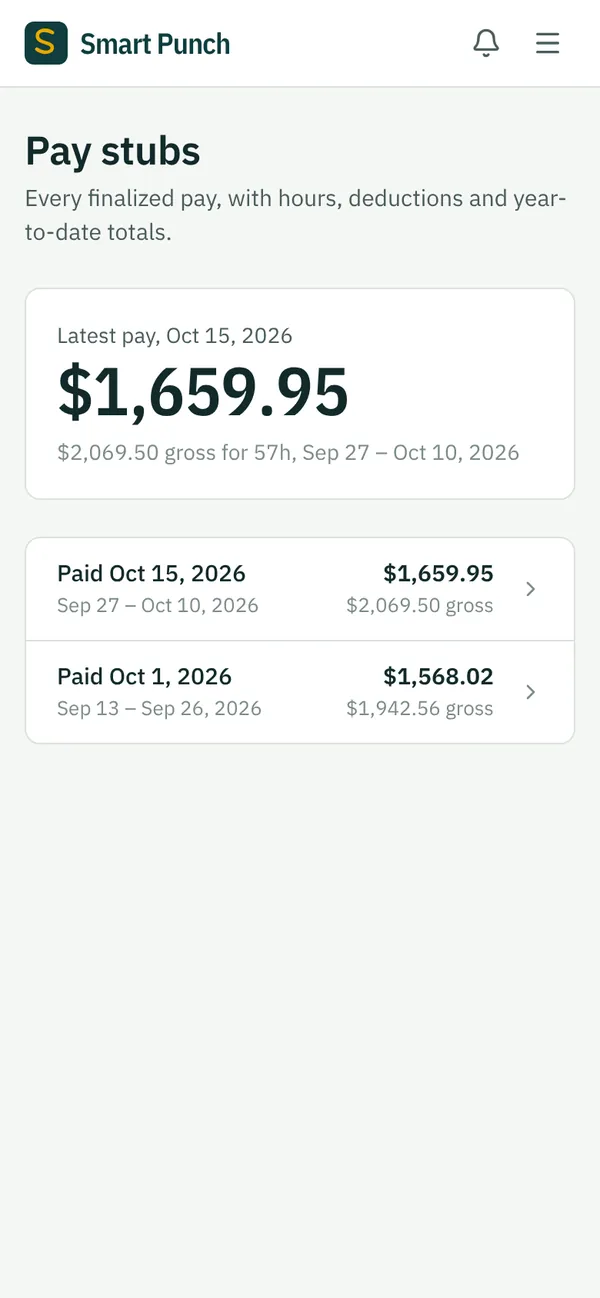
It works in any phone browser, so there’s nothing to install. Staff only ever see their own pay and details. Coworkers see each other’s names on the schedule, and nothing else.
Want to see it with your own team?
We’ll walk you through a week of scheduling and a full payroll.